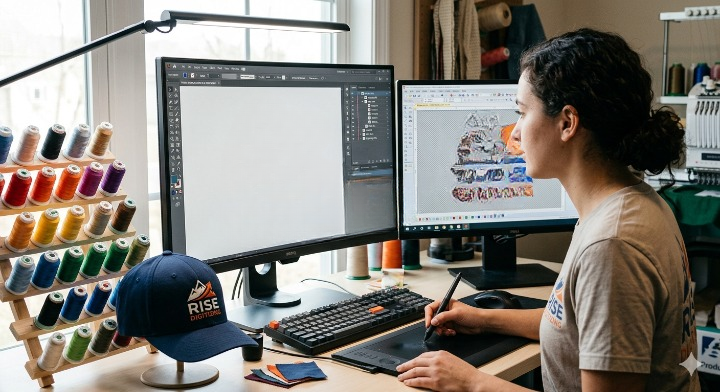
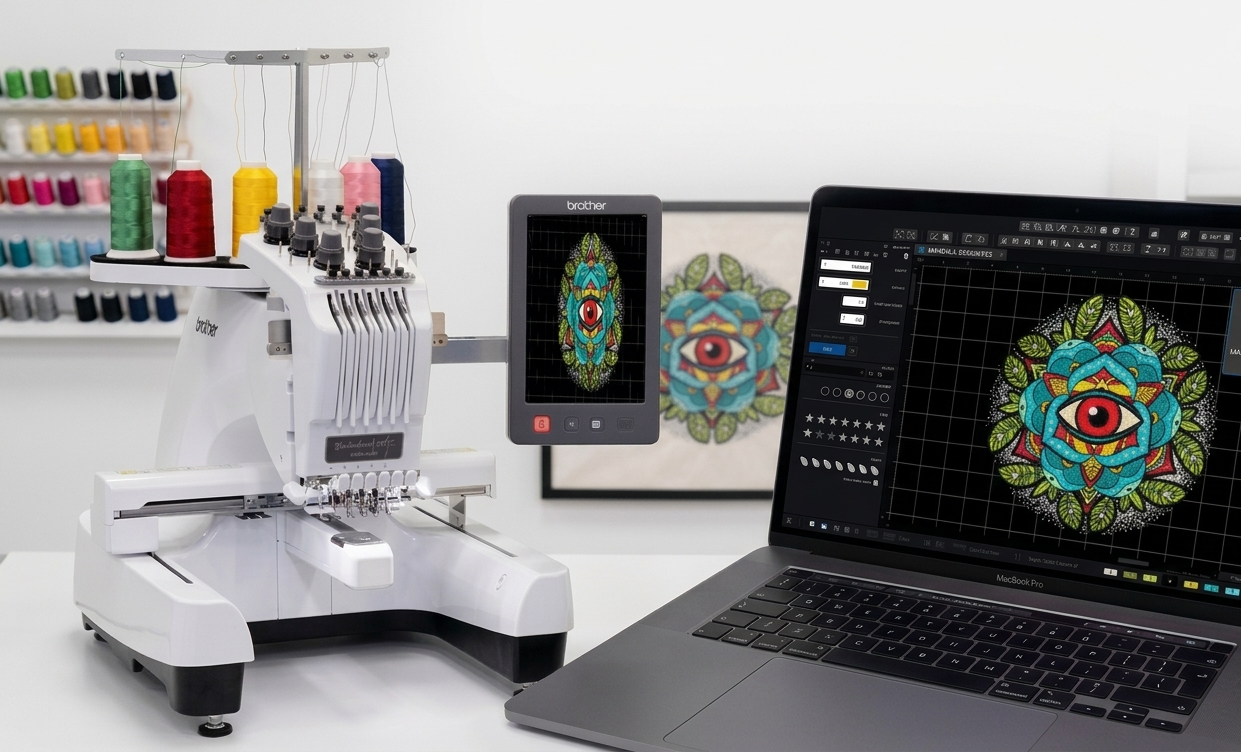

Embroidery machines rely on specific file formats to stitch designs correctly. Among the most commonly used formats are DST and PES. If you’re working with different machines or embroidery software, you’ll often need to handle dst to pes conversion to ensure smooth workflow and consistent results.
This guide explains everything you need to know about converting DST files to PES format, including methods, benefits, limitations, and practical tips for achieving high-quality output.
What is a DST File?
DST (Data Stitch Tajima) is a widely used embroidery file format developed for Tajima machines. It contains stitch data, including needle movements and commands, but does not store detailed design information like colors or layers.
What is a PES File?
PES is a format mainly used by Brother and Babylock embroidery machines. Unlike DST, PES files can store additional design details such as colors, thread information, and design previews, making them more flexible for editing and visualization.
Why Convert DST to PES?
There are several reasons why embroidery professionals and hobbyists perform convert dst to pes:
- Compatibility with Brother or Babylock machines
- Better design preview and editing options
- Improved thread color management
- Enhanced workflow across different embroidery systems
DST vs PES – Key Differences
| Feature | DST Format | PES Format |
| Machine Support | Tajima and industrial machines | Brother, Babylock machines |
| Color Information | Not included | Included |
| File Complexity | Basic stitch data | Detailed design data |
| Editing Capability | Limited | Advanced |
| Preview Option | Not available | Available |
How to Convert DST to PES
1. Using Embroidery Software
Most professional embroidery software allows easy conversion. You simply import the DST file and export it as PES.
Steps:
- Open your embroidery software
- Import the DST file
- Adjust design settings if needed
- Export or save the file in PES format
2. Using Online Conversion Tools
Online tools provide a quick way to handle dst to pes conversion without installing software.
Steps:
- Upload your DST file
- Select PES as output format
- Download the converted file
3. Using Digitizing Services
If the design is complex, professional digitizing services ensure better accuracy and stitch quality during conversion.
Tips for High-Quality Conversion
- Always check stitch density after conversion
- Assign thread colors manually if needed
- Preview the design before stitching
- Test on a sample fabric before final production
- Use updated software for better compatibility
Pros and Cons of DST to PES Conversion
Pros
- Improves compatibility with more machines
- Allows color customization
- Provides design preview before stitching
- Enhances editing flexibility
Cons
- Some design details may need manual adjustment
- Color information must be reassigned
- Complex files may require editing
- Quality depends on the conversion method
Common Issues and How to Fix Them
1. Missing Colors
Assign thread colors manually in your software.
2. Distorted Design
Adjust stitch density and alignment settings.
3. Thread Breaks
Optimize stitch paths and reduce unnecessary jumps.
4. Size Mismatch
Resize carefully to avoid stitch overlap or gaps.
Best Practices for Smooth Workflow
- Keep original DST files as backup
- Use reliable software or trusted tools
- Organize files properly for easy access
- Regularly update your embroidery software
- Test designs before final production
FAQs
1. What is the purpose of converting DST to PES?
It helps make embroidery designs compatible with Brother and Babylock machines while adding more design flexibility.
2. Can I convert DST to PES without software?
Yes, online tools can perform the conversion, but results may vary depending on file complexity.
3. Does conversion affect design quality?
Quality can remain intact if done correctly, but some adjustments may be required after conversion.
4. Why are colors missing in DST files?
DST format does not store color data, so colors must be assigned after conversion.
5. Is PES better than DST?
PES offers more features like color data and previews, but DST is still widely used for industrial machines.
6. Can I edit a PES file after conversion?
Yes, PES files support editing in most embroidery software.
7. What software is best for conversion?
Professional embroidery software usually provides the most accurate results.
8. How long does conversion take?
It usually takes a few seconds to a few minutes depending on file size.
9. Do I need technical skills for conversion?
Basic knowledge is enough for simple conversions, but complex designs may require expertise.
10. Can I use the converted file directly on my machine?
Yes, but it’s recommended to preview and test the design first.
Conclusion
Handling dst to pes conversion is an essential skill for anyone working with multiple embroidery machines. While DST files are simple and widely supported, PES files offer more flexibility, better visualization, and improved editing options. By choosing the right method and applying basic adjustments, you can maintain design quality and ensure smooth stitching results. Whether you use software, online tools, or professional services, proper conversion helps you get the most out of your embroidery designs.