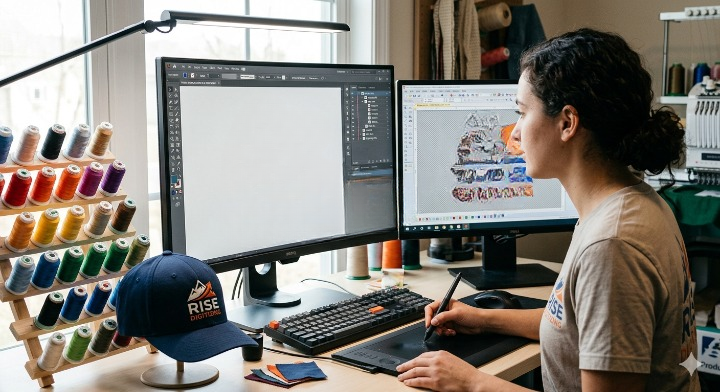

Turning a logo into an embroidery-ready design requires more than simply uploading an image. If you want clean stitches, sharp outlines, and professional embroidery results, understanding how to digitize a logo for embroidery in Illustrator is the first step.
At Risedigitizing, we help brands, businesses, and apparel creators transform logos into high-quality embroidery files optimized for machines like Brother, Tajima, and Barudan.
In this guide, you’ll learn the exact process of preparing and digitizing your logo in Adobe Illustrator before converting it into an embroidery file.
What Does Logo Digitizing for Embroidery Mean?
Logo digitizing for embroidery is the process of converting artwork into stitch commands that an embroidery machine can read. Unlike regular image files such as JPG or PNG, embroidery machines require formats like DST, PES, EXP, or JEF.
Digitizing determines:
- Stitch type
- Stitch direction
- Stitch density
- Underlay settings
- Thread pathing
Without proper digitizing, even the best logo can stitch poorly. If you want to understand the deeper mechanics behind how this artwork transformation impacts your brand assets, you can read our breakdown on logo digitizing explained.
Why Use Adobe Illustrator for Embroidery Digitizing?
Adobe Illustrator is one of the best tools for preparing logos because it uses vector paths instead of pixels.
Benefits of Illustrator for embroidery digitizing:
- Clean vector outlines
- Easy color separation
- Precise path editing
- Better scalability
- Simplified stitch mapping
Illustrator itself doesn’t create embroidery files, but it prepares the artwork perfectly for digitizing software. Having a clean vector foundation is arguably the most critical component of the setup phase; if you are still unclear on why vectors are mandatory, discover what is a vector file and how it preserves image clarity.
Step 1: Open and Clean Your Logo in Illustrator
Start by opening your logo file in Illustrator.
Best file formats to begin with:
- AI
- SVG
- EPS
- High-resolution PNG
Clean the design by:
- Removing unnecessary details
- Simplifying tiny text
- Reducing gradients
- Eliminating shadows or effects
Embroidery works best with solid colors and clear shapes.
Pro Tip:
Very small details often disappear during stitching.
Step 2: Convert Logo to Vector Format
If your logo is a PNG or JPG:
Go to:
Window > Image Trace
Choose:
- Black and White Logo
- 3 Colors
- 6 Colors (depending on design)
Click Expand.
This converts the flat image into editable vector paths. Vector files provide cleaner stitch paths and drastically reduce embroidery errors. If you are starting out with a basic image web format, our step-by-step tutorial on how to convert image to embroidery file walks you through this transitional phase seamlessly.
Step 3: Separate Colors
Each embroidery thread color needs its own layer or grouped object.
In Illustrator:
- Select same-color elements
- Group them together
- Label each color layer
This makes stitch sequencing easier later.
Example:
- Black = Outline
- Red = Fill
- White = Lettering
Color organization saves time in digitizing software.
Step 4: Adjust Line Thickness
Embroidery cannot handle extremely thin lines.
Recommended minimums:
- Satin stitches: 1mm–12mm
- Fill stitches: larger than 4mm
- Text: minimum 5mm height
In Illustrator:
Use Object > Path > Offset Path to thicken thin elements.
This improves stitch visibility.
Step 5: Export the Artwork
Save your cleaned file as:
- AI
- EPS
- SVG
These formats are compatible with embroidery digitizing software.
Popular embroidery software includes:
- Wilcom EmbroideryStudio
- Pulse Ambassador
- Hatch Embroidery
- Embird
Step 6: Import into Embroidery Digitizing Software
Illustrator prepares the vector. Actual stitch creation happens inside embroidery software.
Here you define:
- Stitch types (satin, fill, running)
- Stitch angles
- Underlay
- Pull compensation
- Density settings
This stage converts your artwork into machine-readable embroidery commands.
Step 7: Export to Machine File Format
After digitizing, export your logo into the correct format:
- DST (Tajima)
- PES (Brother)
- JEF (Janome)
- EXP (Melco)
- VP3 (Husqvarna)
Choosing the right format ensures machine compatibility.
Common Mistakes When Digitizing Logos for Embroidery
Avoid these mistakes:
Using low-resolution images
Poor quality artwork creates messy stitch paths.
Too much detail
Small details often fail during embroidery.
Ignoring stitch direction
Wrong stitch flow affects texture.
Overlapping objects
This creates thread buildup.
Tiny text
Text under 5mm may become unreadable.
Can You Digitize Directly in Illustrator?
Not fully.
Illustrator is excellent for artwork preparation, but you still need specialized embroidery software for:
- Stitch mapping
- Underlay generation
- Density control
- Machine file export
Think of Illustrator as the preparation stage.
Why Choose Risedigitizing for Logo Digitizing?
At Risedigitizing, we specialize in professional embroidery digitizing with fast turnaround and production-ready files.
We provide:
- Custom logo digitizing
- Left chest embroidery digitizing
- Cap embroidery digitizing
- Jacket back designs
- 3D puff digitizing
- Applique digitizing
Our files are tested for clean stitching and machine efficiency.
Frequently Asked Questions
How do I convert a logo into an embroidery file?
First convert it into a vector using Illustrator, then import it into embroidery digitizing software to create stitch data.
Can Adobe Illustrator make PES files?
No. Illustrator cannot export PES directly. You need embroidery software.
What is the best format for embroidery logos?
Vector formats like AI, SVG, or EPS are best for preparation.
How much does logo digitizing cost?
Costs vary based on complexity, stitch count, and turnaround time.
Can I digitize my logo myself?
Yes, but professional digitizing gives better stitch quality and fewer production errors.
Final Thoughts
Learning how to digitize a logo for embroidery in Illustrator can save time and improve embroidery quality. Illustrator helps clean and organize your design, while embroidery software converts it into machine-ready stitch files.
If you want professional results without trial and error, Risedigitizing can handle the full process for you with precision and fast delivery.
Related Posts