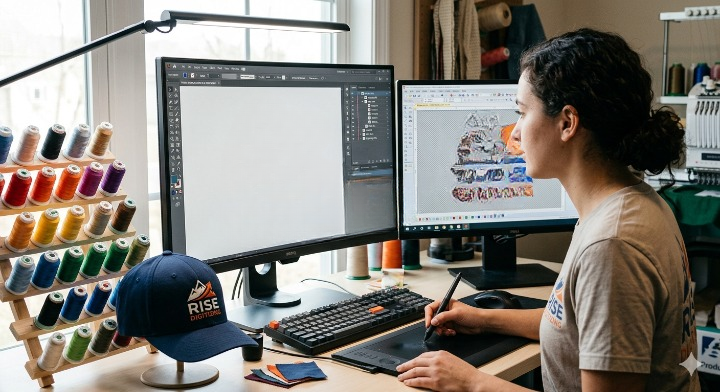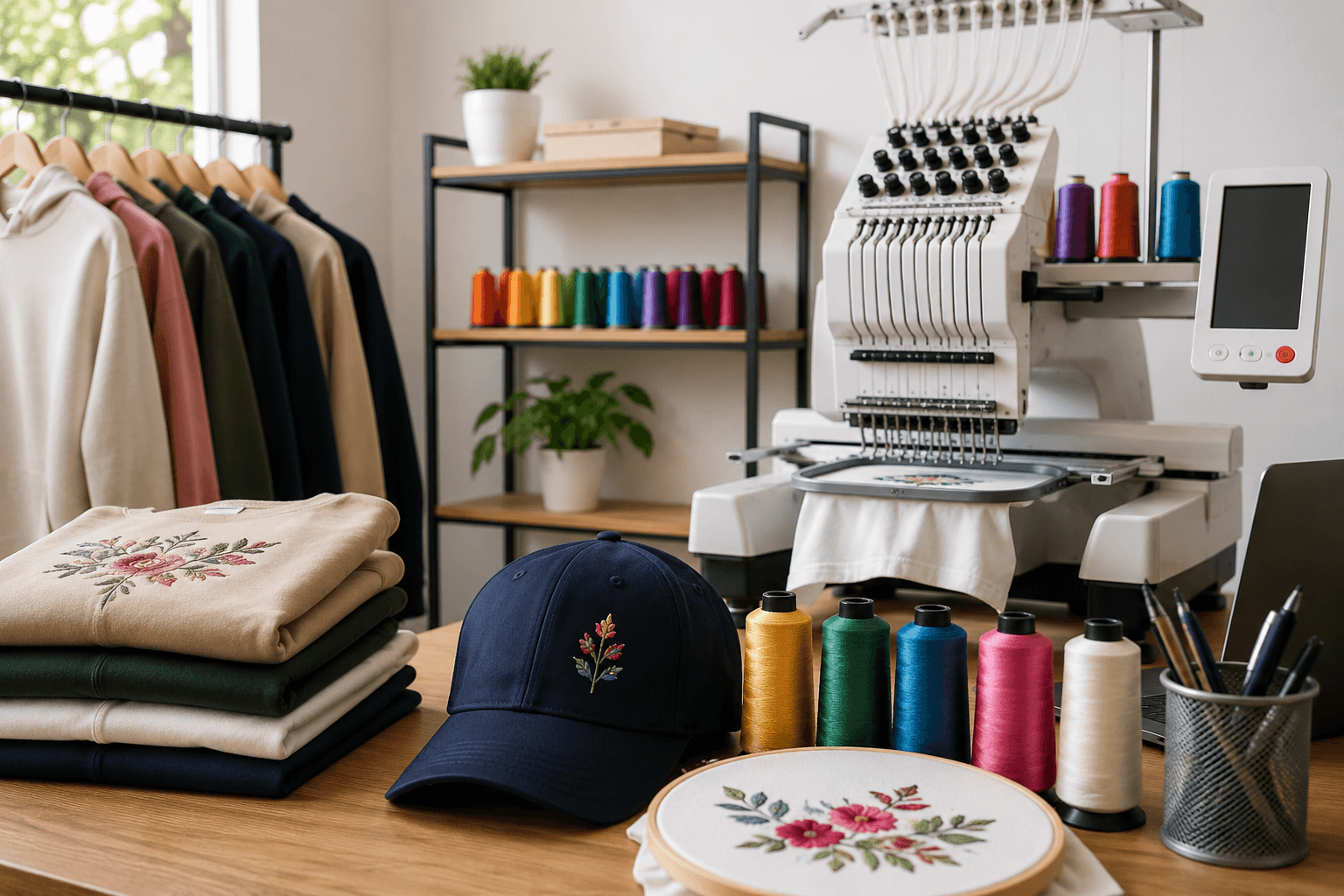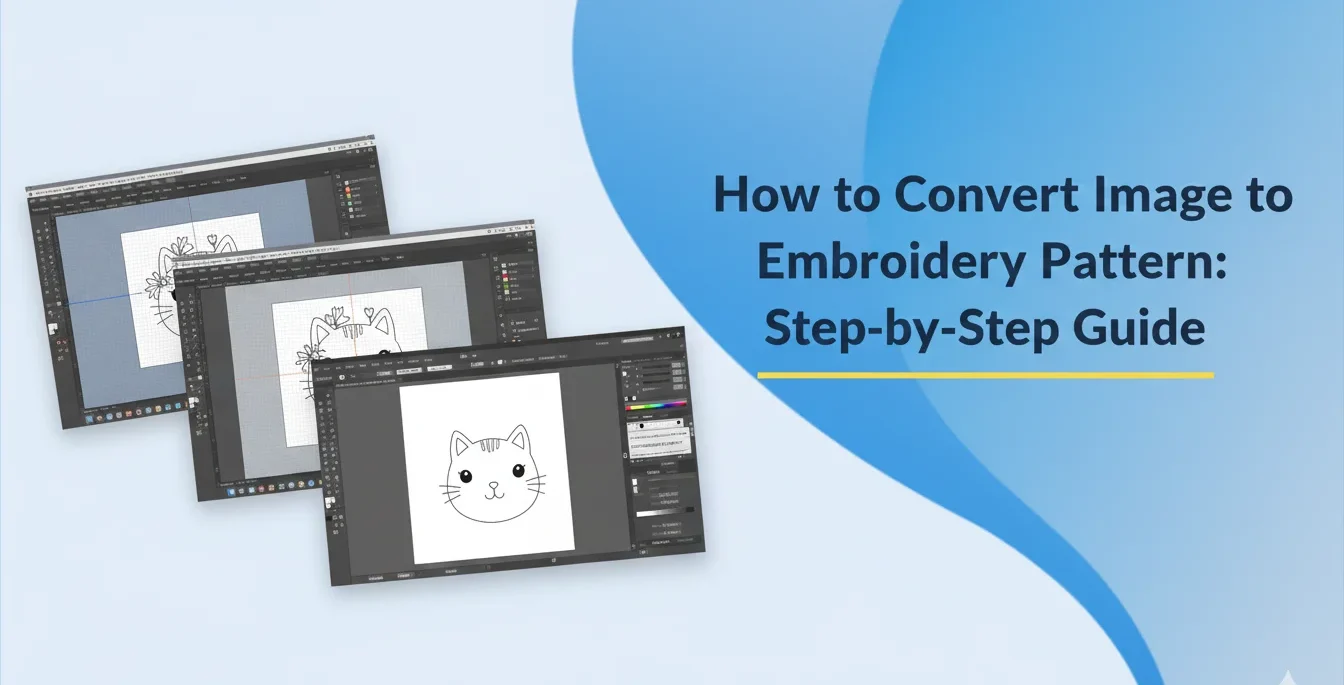
The need for customized embroidery is increasing more quickly than it has ever. If you’re a casual hobbyist or a small-business proprietor, or a professional digitizer being able to know how to convert image to embroidery pattern is among the most useful capabilities you’ll have. Nowadays, the latest digital embroidery tools and software allow you to do this faster than ever to transform images or sketches, logos or artwork into machine-friendly embroidery patterns.
In this comprehensive guide, we’ll take you through each step — starting with choosing the best image, to properly digitizing it to ensure you receive high-quality, professional results each time.
The process of converting an image to an embroidery pattern is the process of transforming an ordinary digital image (PNG, JPG, SVG, etc.) into a stitches file which an embroidery machine can understand.
These stitch files contain instructions like:
The process is known as digitizing embroidery.
Before learning the process of converting an image to an embroidery pattern, begin by choosing the appropriate picture. The final quality of your embroidery is largely determined by the image’s quality.
Use high-resolution files
Choose images that have clear shapes and clearly defined lines
Do not take photos with shadows or blurry images
Simple artwork is more effective than detailed photographs
For logos, vector files (SVG, AI, EPS) give best results
If your image is complicated, try simplifying the image prior to digitizing it by decreasing the colors of your image or eliminating background information.
In order to convert an image into embroidery patterns, you require digitizing software. There are free as well as cost-based choices.
Select the right software for your experience level, name, and the size of your task.
When your software has been opened:
The digitizing process is easy and precise.
A majority of programs offer two ways:
It converts the image to stitches within a single button.
However, it often requires manual corrections.
Best for:
This method allows you to manually assign types of stitches as well as directions.
It gives more control and produces professional results.
Best for:
Different areas in your design require different stitches. This is the most important aspect of understanding how to convert image to embroidery pattern professionally.
The correct type of stitch affects:
Stitch density is the measure of how tightly stitch lines are formed.
Pull compensation ensures that the design won’t shrink when stitching, particularly on elastic fabrics.
Settings differ based on fabric type (cotton, denim, fleece).
Select thread colors manually so they match the image.
Your embroidery machine requires a clear stitch sequence:
Be sure that jumps and trims are arranged in a way that minimizes thread loss.
Different machines require different formats.
Make sure you export the design into the format compatible with your embroidery machine.
Before stitching the final product:
Testing is crucial for accurate final results.
Knowing how to convert image to embroidery pattern allows you to create with complete flexibility.
Whether you’re designing custom items, selling digital embroidery designs, or operating an embroidery business, digitizing opens up endless possibilities.
You can convert:
…and many more.
Using automatic digitizing tools in programs like Hatch and SewArt is the easiest. Manual digitizing gives superior results for professional use.
Yes! That is exactly what digitizing does. Upload your photo, digitize it, and export it into machine formats such as PES, DST, JEF, EXP, and more.
Not always. Free tools like Ink/Stitch or affordable programs like SewArt are great for beginners. Professionals use Wilcom or Hatch for high-quality digitizing.
The process of learning how to convert images to an embroidery pattern is an important ability that opens doors to custom embroidery, innovative designs, and skilled machine work. By following the steps in this tutorial — choosing the correct image, carefully digitizing it, selecting the right stitches, and testing your work — you can create perfect embroidery patterns every time.
To get the best and most affordable customized digitizing, rely on Rise Digitizing as your preferred option for high-quality embroidery files.
We Offer fast delivery, professional quality and the highest level of precision in the industry.